
Every filing and payment, on its date, across the group.
Record each entity’s CRA program accounts once. TaxDesk creates the filings and payments that follow from them, keeps their status and evidence, and shows what’s due next across every company.
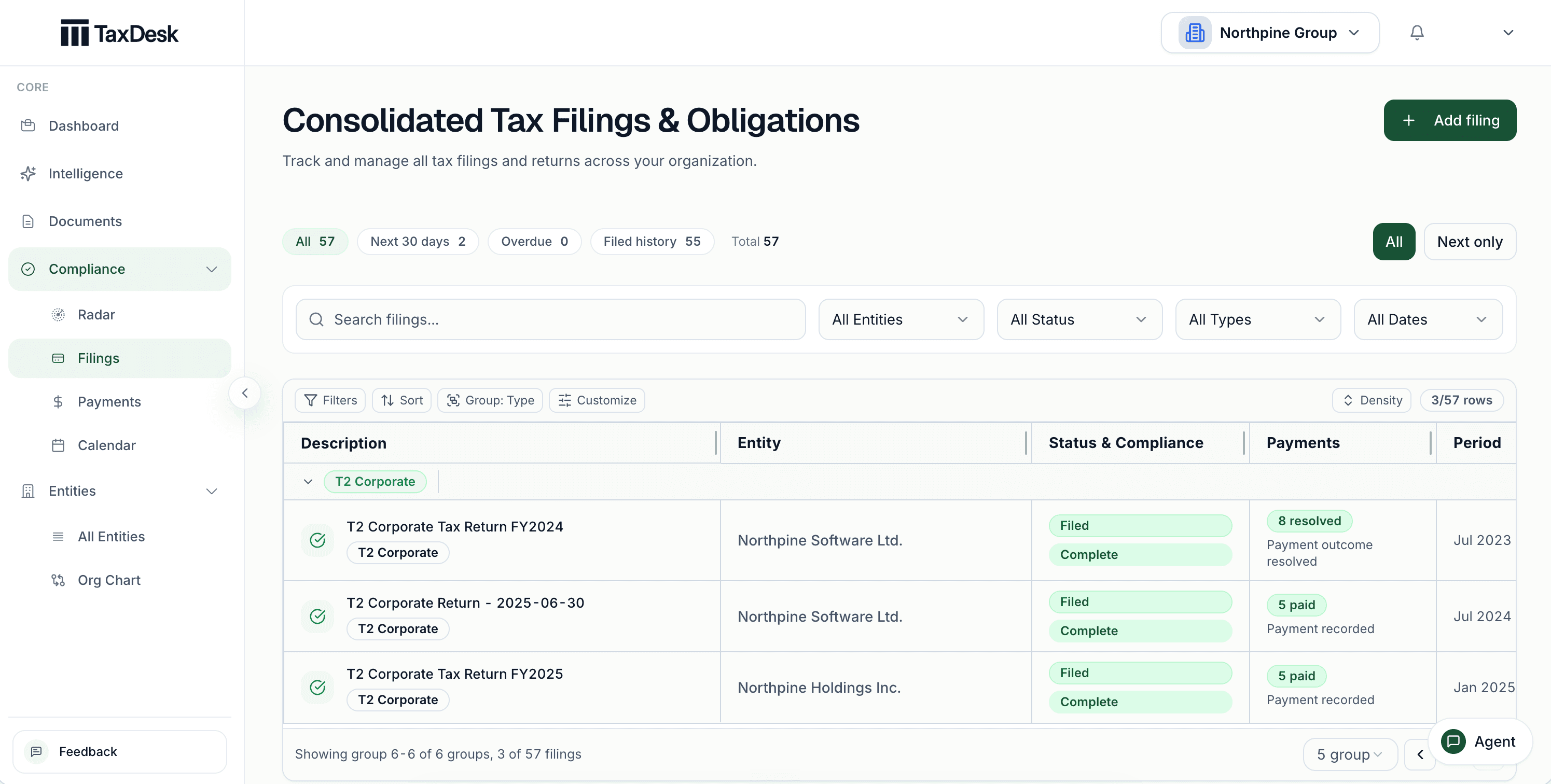
- 1Upcoming and overdue work, counted at a glance
- 2Every filing grouped under its entity
- 3Each filing carries its own status
- 4Payments tracked beside each filing
Set up the account. The schedule follows.
Add a program account with its filing frequency, remitter type, and the entity’s fiscal year-end. TaxDesk generates the supported filings and payments, and recalculates future dates when a setting changes. Anything already filed or paid stays as recorded.
- Corporate income tax, GST/HST, payroll, trusts, partnerships, and non-resident withholding
- A filing and its payments tracked together, so a filed return with an open balance still shows as open
- When a setting is missing, the account asks for it instead of guessing a schedule
See every due date on one calendar.
Filing and payment tasks appear on the dates they are due, colour-coded by type and status, across every entity in the workspace. Open a day to see everything due on it.
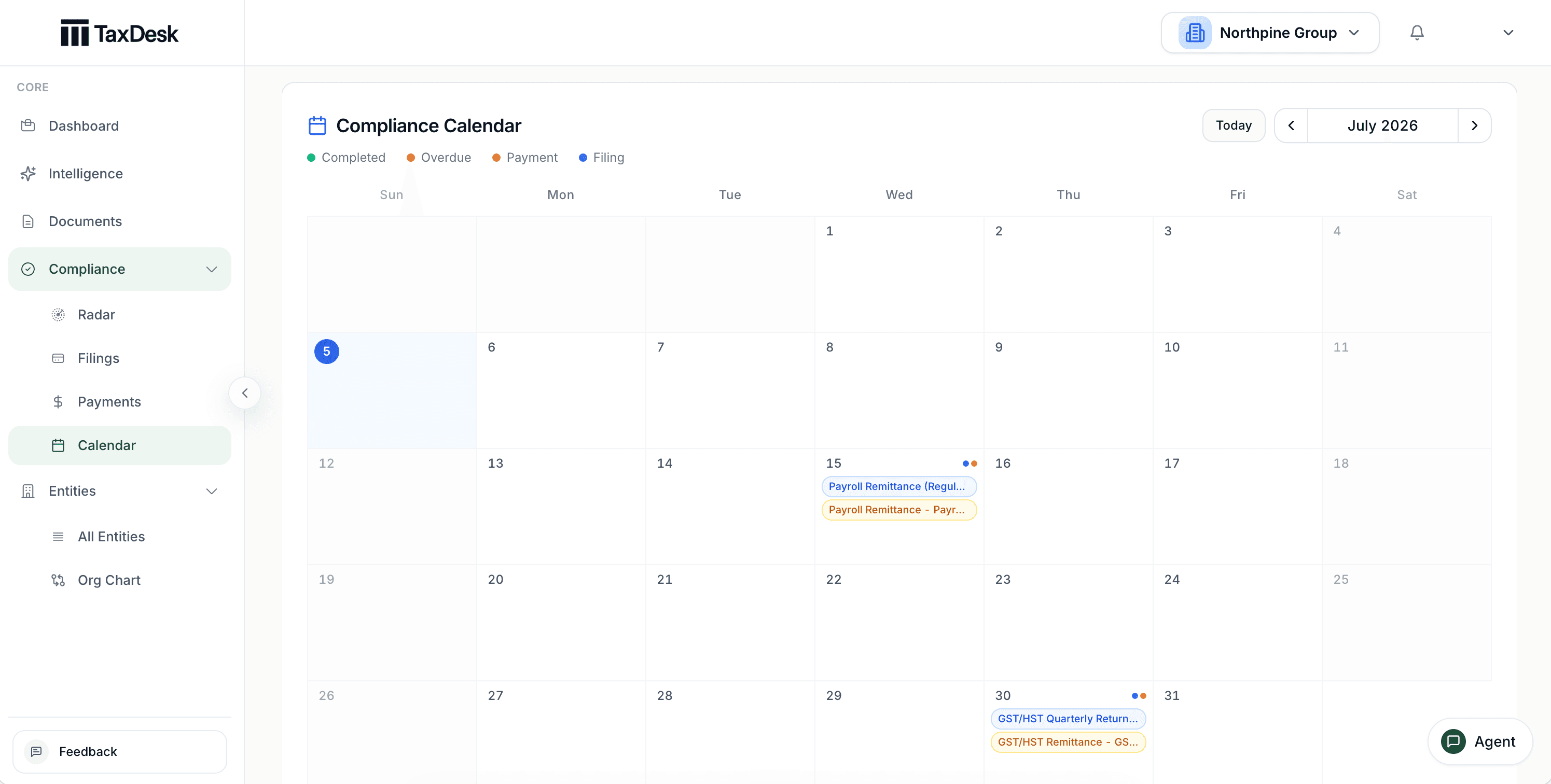
- 1Colour-coded by type and status
- 2Filing and payment tasks on the dates they are due
- 3Open a day to see everything due, across entities
- 4Page through months, or jump back to today
Balance-due dates by the rule that applies.
T2 balance-due dates start at two months after year-end. The three-month rule and quarterly instalments apply only after you confirm the entity qualifies.
Payroll as remittances and a T4 Summary.
A payroll account produces each remittance on its remitter schedule and one T4 Summary for the calendar year.
Trusts and partnerships too.
T3 returns carry their balance due. T5013 deadlines follow the partners recorded for each fiscal period.
Know what’s owed, what was paid, and what still needs proof.
Every payment across the group sits in one list with its balance, due date, and status. Record a remittance once, even when it covers part of a balance or more than one period, and TaxDesk applies it to the payments it covers.
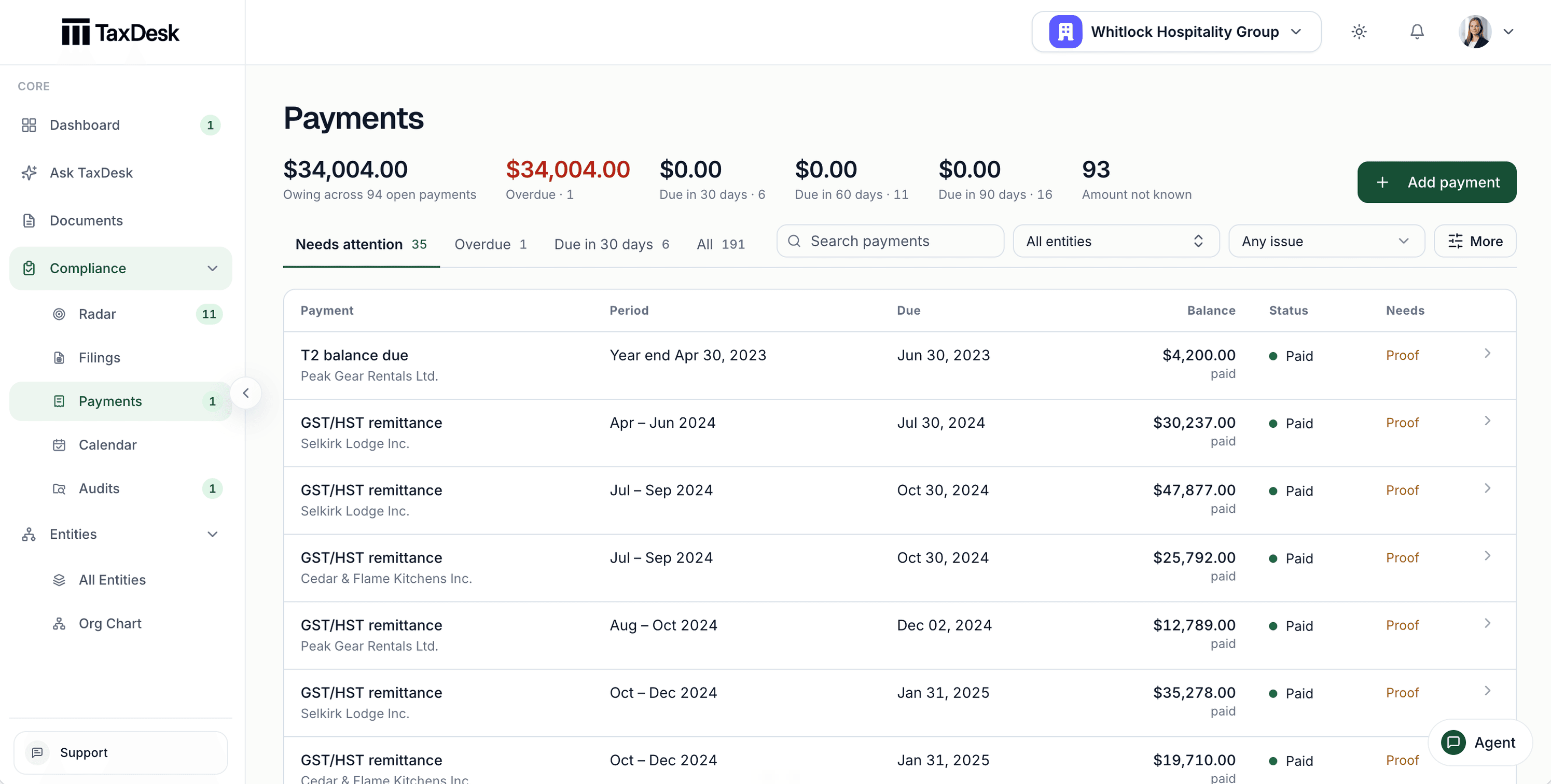
- 1Amount owing, overdue, and due soon across every payment
- 2Needs attention, overdue, and due in 30 days
- 3Each payment's status
- 4What each payment still needs, such as proof
Instalments proposed from last year’s return.
From the prior years’ T2s, TaxDesk proposes one instalment schedule for the year, monthly or quarterly, with the amounts it calculated. Nothing is set until you accept it.
The outcome of every period.
For each filing period, record whether a payment is due, a refund or credit is expected, or no remittance applies.
Not recorded is not overdue.
A payment past its date with nothing recorded reads as not recorded until someone confirms what happened, so the overdue count stays meaningful.
Find out before something is late.
Compliance Radar counts overdue work and work due in the next 30 days, and orders what needs attention by urgency. Each workspace can also get an email digest of overdue and upcoming filings and payments.
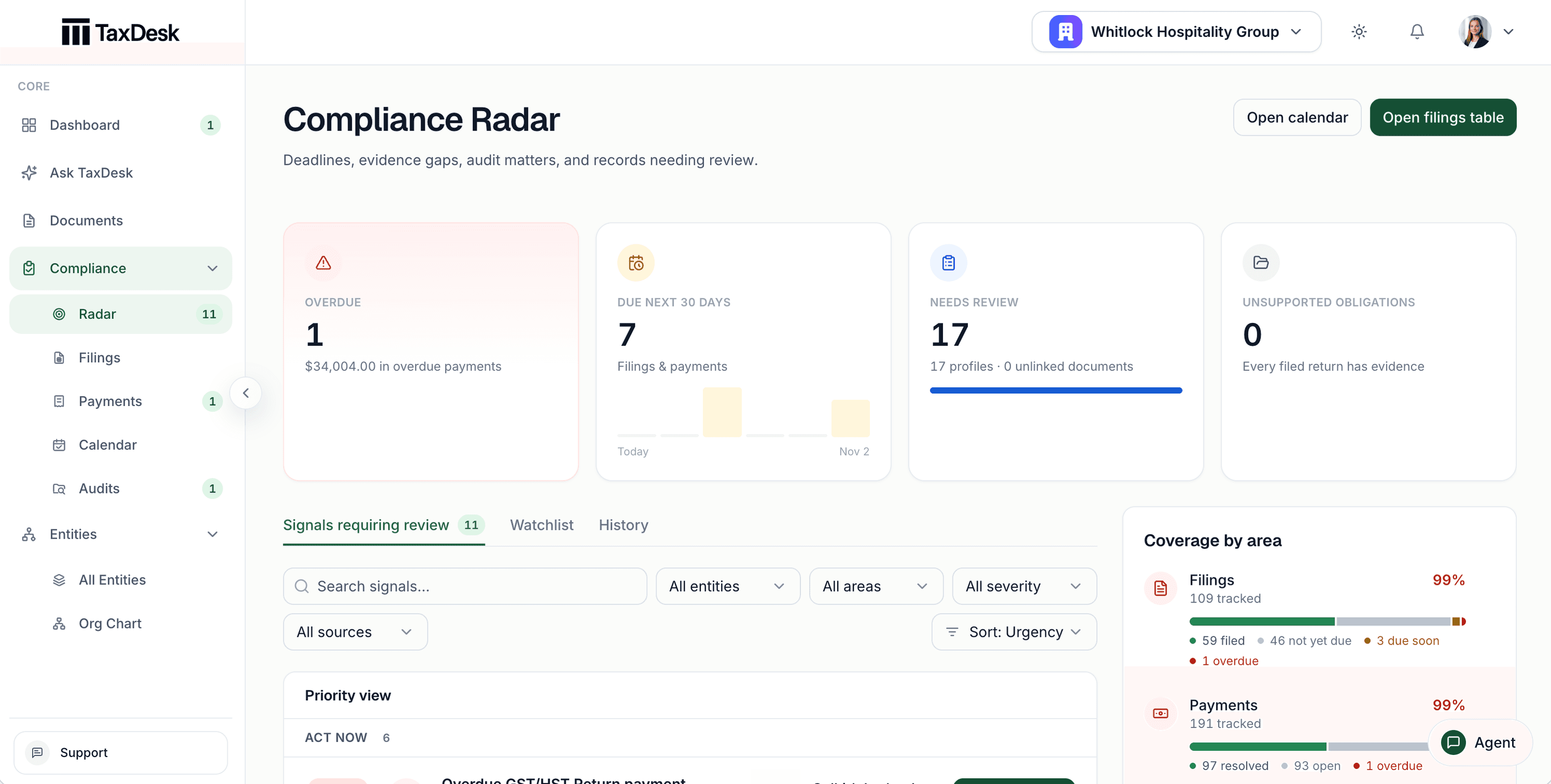
- 1Overdue work, with the amount outstanding
- 2Work due in the next 30 days, day by day
- 3Signals requiring review, a watchlist, and history
- 4Coverage by area: filings, payments, profiles, and documents
Where it stops
TaxDesk keeps the schedule. You file and pay.
TaxDesk doesn’t file returns, make payments, or connect to CRA. It works from the settings you record and the outcomes you confirm.
- FilingYou or your accountant prepare and file through your usual channels.TaxDesk records the status, dates, and documents behind each filing.
- PayingYou pay CRA from your bank, the way you do today.TaxDesk records each remittance and the payments it covers.
- CRA programsYou enter each entity’s program accounts and settings.TaxDesk creates the filings and payments those settings call for. There is no live CRA connection.
Common questions
Questions about filings and payments.
Which filings and payments does TaxDesk track?
T2 returns, balances due, and instalments; GST/HST returns and payments; payroll remittances and the T4 Summary; T3 returns and balances due; T5013 returns; T5, T2054, and NR4 work tied to dividends; and non-resident withholding remittances. Each comes from the program accounts you record for the entity.
What happens when a filing frequency or year-end changes?
Future dates that haven’t been filed or paid are recalculated. Filed, paid, and manually entered records stay as they are. When a change falls partway through a period, TaxDesk asks for the transition details instead of inventing them.
Can one payment cover several periods?
Yes. Record the remittance once with its amount, date, and reference, and apply it across the payments it covers. Partial payments leave the rest of the balance open.
Does TaxDesk generate Quebec or Alberta corporate payments?
Not today. TaxDesk generates federal CRA filings and payments. You can add a provincial filing or payment by hand so it sits on the same list.
Does TaxDesk pay CRA or file returns?
No. TaxDesk doesn’t connect to CRA. You and your accountant file and pay the way you do today, and TaxDesk records what happened.
Get started
See every filing and payment across the group.
Tell us about your entities and their CRA accounts, and we’ll follow up by email.